
These options are part of the Workstation specific settings.
The options are arranged as follows:
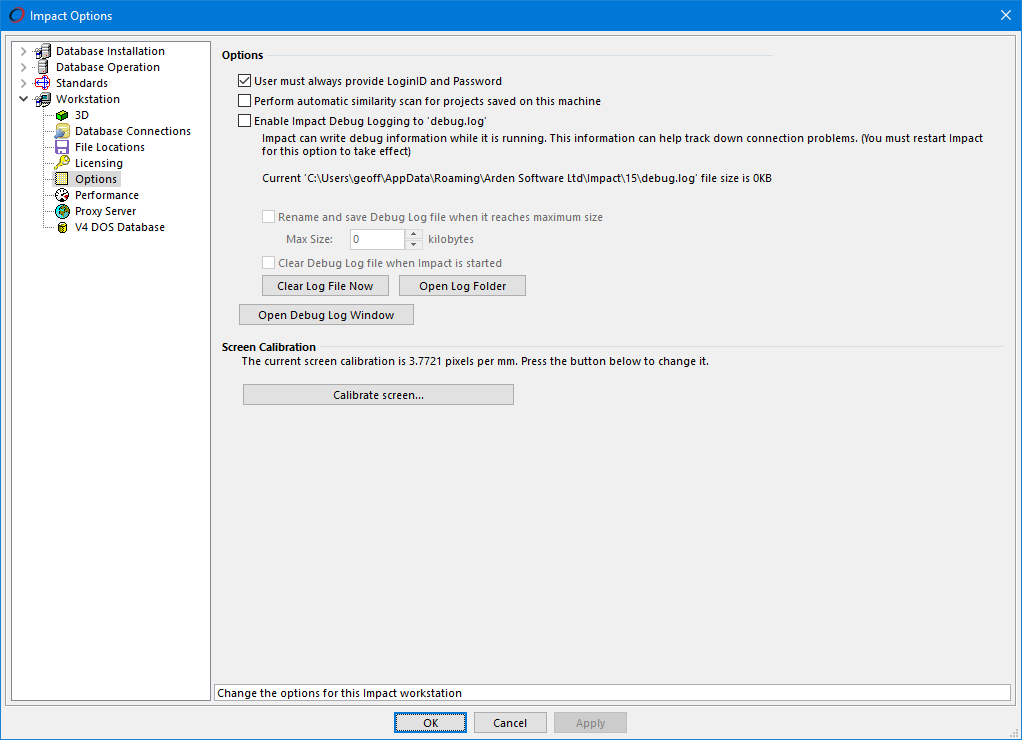
Workstation - Options
Options
User must always provide Login ID and Password
Switch this option on to disable the Save Password option of the login Connect form.
Perform automatic similarity scan for projects saved on this machine
Switch this option on to automatically perform a similarity scan on each project as it is saved (and updated).
Enable Impact Debug Logging
Debug logging can be useful when sporadic problems occur - it can help to track down the cause. It is recommended that you leave this disabled unless Impact technical support or your distributor suggests otherwise. When used, a file called "Debug.log" is created in a local folder, as shown in the message below the option.
Rename and save Debug Log file when it reaches maximum size
Switch this option on to cause the debug file to be renamed when it reaches the specified size. A new file will then be automatically created.
Clear Debug Log when Impact is started
This option can be used to ensure the log file does not get too large.
Clear Log File Now
Press this button to empty the file immediately.
Open Log Folder
Press this button to open the debug log location in a new window.
Open Debug Log Window
Press this button to open the debug log in an Impact window. This allows you to see log information as it is being written.
Screen Calibration
If you wish to use the Zoom To Actual tool, where the on-screen design reflects the true size, then you must first calibrate your screen. This provides a mapping between screen pixels and drawing units.
Press the Calibrate Screen button to perform the screen calibration operation.
Feature Change History
The following changes have been made to this feature.
| History of Change | Version |
|---|---|
"Perform automatic similarity scan for projects saved on this machine" option added | 2026 |